Showing posts with label windows. Show all posts

December 9, 2016

Day 9 - One year of PowerShell or DevOps in the Microsoft world...

Written by: Dominique Broeglin (@dbroeglin)
Edited by: Matt Stratton (@mattstratton)

Holidays are a time for reflection and giving back. This year, I thought I would reflect on my ongoing Linux to Microsoft transition and give back a few tidbits I learned about DevOps in the Microsoft world. This article is meant to illustrate a journey from Linux to Microsoft in hopes that the “from the trenches” perspective will help others attempting the same transition.

Let’s start with a quick background to set the stage.

Background

After an education in both software engineering and distributed systems, I worked for several IT companies, small and big, in a variety of domains such as telcos, education, justice, transportation, luxury goods, or the press. I was lucky enough to have the opportunity to work with bright people very early in my career. I’m very grateful to all of them, as I learned a lot from them and was spared quite a few mistakes. One of the subjects I was introduced to early is automation, both through my co-workers and through seminal books like The Pragmatic Programmer: From Journeyman to Master and its sequel Pragmatic Project Automation. This pushed me towards automated configuration management in the early days.

If memory serves, I discovered Linux somewhere around 1994 and was instantly hooked. I still recall that first Slackware distribution with its 50-something floppy disks. For twenty years, I’ve worked mainly on Linux and Unices, trying studiously to avoid any Microsoft product. Some people may even recall me swearing that I would never work on Windows. However, a few years ago Microsoft changed its approach, and I was, coincidentally, presented opportunities in Microsoft environments. As was once said by John H. Patterson, “Only fools and dead men don’t change their minds.” So I went on and changed mine, one step at a time…

Armed with almost 20 years of Linux experience and ten years of automated configuration management, I jumped into Microsoft automated configuration management.

Step 1: Develop on Windows, Deploy on Linux

The first step was a Java project that was starting. In that early design and setup phase, only a few people were involved. I was brought in to help with Java architecture and software factory setup. Having set up quite a few factories already that part was not new to me. However, we would have to onboard a sizable number of people in a small amount of time. That would be a challenge. Because, at the time it took quite a bit of time to setup a working environment for a developer, tester, architect or DBA.

During previous projects, I had used Vagrant to setup development environments that could be shared easily. Vagrant is a wrapper around a virtualization tool (at the time VirtualBox, but in the meantime, Hyper-V and VMWare were added too) that helps in setting up a virtual machine. It starts with a fixed base image, but allows for additional setup instructions to be declared in a file that can be shared in the project’s source control repository. Everything needed to setup the environment is declared in a file called Vagrantfile and when a developer wishes to set up his he just executes vagrant up.

A few minutes later, a fully operational environment is running inside a virtual machine which in turn runs on his desktop environment. In a MacOS X or Linux environment, the developer usually edits files by running his editor on the host system but builds, deploys and tests the system in the virtual machine. Moreover, Vagrant allows for provisioning scripts declared in the Vagrantfile but it also allows integrating with a Puppet or Chef infrastructure. Which means that the development virtual machine can be provisioned exactly like the test and production environments.

It also allows for a nice DevOps pipeline by permitting each developer to experiment with an infrastructure change on his own virtual machine. When satisfied she can then share that change through source control. Her fellow developers will benefit from the change by refreshing their sources and executing a simple vagrant provision command. The change can then be merged, again through source control, in the test and production environments. Developers and operation people can experiment in their environment without fear and at a very low cost. Breaking their environment would only mean that they have to revert their changes through source control and execute a vagrant destroy; vagrant up command (with the additional benefit that they get to grab a cup of coffee while this is running).

However, after a few experimentation with Vagrant on Windows, we quickly found out that the developer experience was not satisfactory. The performance was very degraded, editing on Windows while building on Linux proved to be quite challenging. On the other hand, the JEE technology with thousands of Java, XML and ZIP files was posing a greater challenge to virtualized environment than the more common Rails, Node or Python environments.

As we already planned on using Puppet for test and production environment deployment, we settled on deploying each developer’s desktop environment with the same tool. This allowed us to almost completely automate desktop environment setup. It had a few drawbacks, though. Mainly, for those project members that worked on their laptop and had previously installed tooling, the setup process might interfere with those tools or fail altogether because they were set up in an unexpected way. We also had the common issues that were found out only in the test environment because developers tested on their own Windows environment.

Step 2: Deploy on Windows in a Linux shop

The second step was a bit different. This time, we were both developing and deploying on Windows. The project was only a few months old; the deployment process was manual, and configuration management was starting to become an issue. Most of the rest of the company was deploying applications on Linux, and the infrastructure team had already introduced Puppet to manage those hosts. We ourselves used Puppet to deploy our hosts to build on existing experience and to prepare for an eventual migration from Windows to Linux.

All environments were managed by the same system which allowed developers to have local setups almost identical to test and production environments. Deployments and configuration changes were propagated along the pipeline by successively merging from development to test and from test to production. Configuration data was stored in HieraDB a part of Puppet that provides a hierarchical configuration database.

This particular software, we were developing, required complicated configuration management, and we rapidly reaped the benefits of introducing automation. Especially when deployments started multiplying.
However, it revealed much more vividly than in step 1 that Puppet, or any tool that grew up in the Linux world, has an impedance mismatch when deployed on Windows. Basically, Unices are based on files and executables whereas Windows is much more complex. The registry, the right management system, drivers, host processes, services, etc. All those concepts are not hugely different from Linux equivalents. But nonetheless, different enough to make things complicated with tools like Puppet, Chef, Ansible, Salt, etc. Nothing is completely impossible, but you have to work harder to achieve the same result on Windows than in their native OSes.

Especially, when you cannot handle the task with pre-existing resources and need to add some new behavior to the configuration management tool. This can be achieved either by extending them with Ruby code for Puppet and Chef or Python code for Ansible and Salt. But even general purpose languages like Ruby and Python that are ported to Windows show some of that impedance mismatch. Additionally, most of the time, they are not known by existing IT professional. We chose to use Bash through the MSysGit toolbox because both developers and IT professionals were familiar with it. However, that still was not satisfactory. Even if that version of Bash is very well integrated with Windows, it still does not work seamlessly. Very simple tasks like creating a properly configured Windows service required juggling with different concepts and commands.

Note: in the meantime, Microsoft has released a beta version of Bash on Windows which is another version of Bash running on Windows. We did not use it as much as the MSysGit version, but it seems to exhibit the same inherent difficulties.

Step 3: What the heck, let’s learn PowerShell

The latest step of our journey occurred in a full Microsoft environment. Development and deployment happened almost exclusively on Windows. Modern configuration management like Puppet or Chef was not yet introduced. However, several efforts were made to introduce automation, but mostly of the mechanization sort (see below). Repetitive tasks have been accumulated together into scripts, in some cases, those scripts are called through workflow like graphical interfaces, but mostly, the control and knowledge remained with the IT professional.

This time around, people already were familiar with PowerShell, the scripting language introduced by Microsoft in 2006. The approach we took was to expand on that existing body of knowledge with extensive training and systematic exploration of PowerShell solutions to our issues before even considering more advanced but also more alien solutions. We found that PowerShell provided most of the required building blocks for a full deployment and configuration management stack.

PowerShell

PowerShell is a scripting language introduced by Microsoft in 2006. But it was already laid out in the Monad Manifesto by Jeffrey Snover in 2002. As explained in the manifesto, PowerShell takes a new approach to old issues. It is a shell with a pipeline. However, PowerShell passes objects down the pipeline, not text or binary data like its Unix relatives. This saves quite a bit of work when composing simpler commands together.

PowerShell also leverages the .Net framework which makes it as powerful as any general purpose programming language. Access to the .Net framework means that any API available to .Net programmers will also be accessible through PowerShell. But it does not stop there. It also provides jobs, remoting, workflows, package managment and many other features. Among those, two are of particular interest when building an automation solution: Desired State Configuration and Just Enough Administration.

Desired State Configuration

DSC builds on top of PowerShell to implement configuration management building blocks called resources. Those resources, are very similar to Puppet resources and similarly allow IT professionals to declaratively express what the state of the system should be. The actual imperative implementation that changes the system to the desired state is implemented by a PowerShell module.

DSC also provides a declarative domain specific language to express a system’s configuration and an agent that can apply that configuration to a specific host. The agent is an integral part of the Windows Management Framework which means that it will be deployed everywhere PowerShell is.

Transforming traditional imperative scripts into DSC resources allows us to achieve idempotence. Which in turn allows us to handle any configuration change like a simple change in the declared configuration. DSC will then ensure the system ends in the required state from the previous state. Even, a manual change, of the system would be caught by DSC as a configuration drift and could be automatically corrected, depending on the agent’s configuration.

DSC can do much more. However, it is not as mature a solution as Puppet or Chef. It lacks the ecosystem around it: a configuration database, reporting tools, easy but powerful configuration composition and reuse, etc. Therefore, our current approach is to associate both tools. The impedance mismatch mentioned earlier can be solved by letting Puppet or Chef use DSC resources to effect configuration changes on Windows, creating a win/win situation. Benefit from all the power behind the Puppet and Chef ecosystems, while still leveraging PowerShell, which is native to Windows and already known to IT professionals.

Our current preference is to use Chef. Chef is a bit less mature than Puppet, but it seems that Chef and Microsoft actively work together to integrate both solutions.

Just Enough Administration

JEA is a tool that helps reduce administrative rights dissemination. Lots of operations require administrative or at least somehow elevated rights to be performed. That usually means that if you have to perform one of those operations (even if just is a read-only operation), you will get administrative rights. Or some ad hoc solution would be put in place to somehow allow you to do what you needed to. This can lead to pretty complex and fragile solutions.

From my Linux background point of view, JEA is like sudo on steroids. It handles both privilege elevation, RBAC, remoting and integrates nicely with PowerShell scripting. It can easily be deployed via DSC which helps to ensure limited and uniform access rights throughout the whole system.

Perspective

That latest step is still quite new and, for some parts, a work in progress. We have solved all the issues encountered in previous experiences and even a few new ones, which leads us to think we are on the right track. Moreover, it seems the vision we have created aligns nicely with the “new” Microsoft. For instance, the recent open sourcing of .Net and PowerShell, while at the same time porting it to Linux and MacOSX, opens new avenues for automating our few existing Linux systems.

Lessons learned

The following lessons were learned the hard way. They are a bit opinionated. But, all are rooted in real life situations where not following them meant failure…

Start small.

In my experience, trying to automate the whole system at once ends badly. At best, only those parts of the system that were easy end up automated, leaving huge gaps where manual intervention is still needed. At worst, the effort fails completely.

Start small by considering only a single part of the system. However, ensure that that part is entirely automated. Do not leave some manual steps in-between automated parts. The automation should encompass all use cases, even those considered exceptions. If it looks like they are too different to be automated, it usually means that the automation system is too rigid, too specialized to some local or current way of doing things. Not being able to handle today’s exceptions is a good indicator that the system we are creating will probably not be able to handle future either. Also, partial coverage means that we cannot have full confidence in our ability to reconstruct the system. Be it because we are facing a major disaster or, just because we need to experiment with a copy of the actual system.

This makes for slower progress but allows you to get a solid foothold on the automated ground. Expanding from that solid ground will be much easier in the future.

“Mechanization” is not automation…

In my experience, in environments where the concept of automation is new, it is often confused with mechanization. It is what might be called the reduce 10 steps to 1 syndrome.

Wikipedia defines Mechanization as:

Mechanization is the process of changing from working largely or exclusively by hand or with animals to doing that work with machinery.

Too often, automation is confused with mechanization. Allowing developers to submit an SQL schema migration through a form is a form of automation. The developer does not need to open a SQL tool, enter the proper credentials and execute the SQL file by hand. However, it is not automation yet. The process is still almost exclusively under the control of a human being (animal labor is now mostly eliminated from our IT operations, although we still occasionally see some developers talking to ducks). Wikipedia defines Automation as:

Automation is the use of various control systems for operating equipment […] with minimal or reduced human intervention.

To fully automate our SQL database schema migrations, human intervention should be entirely eliminated. Which means that the developer should only specify which version of the database schema is required and automation will take care of bringing the database to the proper state. Tools like Liquibase or Flyway can help a lot with that. To the point that humans do not even need to ask for a database schema version change. The application can, upon starting, check that the database is in the proper state and, if not, apply the relevant migrations.

While introducing automation instead of mechanization is a bit harder it has tremendous advantages down the road. To quote Wikipedia one last time:

The biggest benefit of automation is that it saves labor; however, it is also used to save energy and materials and to improve quality, accuracy, and precision.

Automation completely eliminates human error by eliminating human decision from the process. Which in turn improves quality and repeatability.

Keep away from shiny tools

With the introduction of Infrastructure as Code IT professionals became de facto developers. That means their activity has changed from simply deploying and operating software to actually building the software that deploys that software -even when that software is some piece of infrastructure.

That poses a challenge to any IT professional that did not start his career as a developer. However, in the Linux world, any IT professional has been exposed to a variety of scripting languages which performed a lot of tasks from the most mundane to some quite sophisticated (for instance Gentoo’s build system, ebuild). The Microsoft world, however, has long relied on graphical user interfaces and manual operations. It is thus natural to turn to graphical tools that promise to simplify infrastructure as code by allowing building complex automation through graphical manipulation. I have yet to find a graphical tool that fulfills that promise. During the last years, I found quite a few instances where they made things way worse.

Coding is coding. To this day, most of the coding occurs by writing code. Yes, there are a few specialized tasks that are better handled by graphical tools, but general coding tasks usually involve editing some form of text. So, even if you can leverage graphical tools for some of your automation tasks, in the end, a general purpose scripting language will always be necessary.

The language of choice, on Microsoft Windows, is PowerShell. It is still a Shell with its roots firmly planted in the Unix world but is also very well integrated with the Windows system and Windows applications. All of which makes your life so much easier. If you only learned PowerShell by doing the same stuff you did with .BAT files and sprinkling a bit of Stack Overflow, try to get some formal training. It will be time and money well spent that will pay for itself time and time again.

Involve IT professionals

Automation should be built by the people who are the most intimate with the system being automated. If the automation solution is built by outside people, it often lacks the proper adoption that would permit it to grow. In some extreme cases, the knowledge of what the automation actually does is lost in the system. Developers move on to building other systems, and IT professionals lack the expertise to actually dig into the system when needed.

Of course, in most occurrences, IT professionals are not yet developers and lack the set of skills required to build the automation tools. In which case, bringing in external resources to help mentor them in those new fields will speed things up and prevent fundamental mistakes. However, at the end of the process, IT professionals should be in charge and complete control of their toolchain.

One way to flatten their learning curve while still leaving them in charge is to help them set up a software factory and software tooling very early in the process. If PowerShell module scaffolds can be generated, tests automatically executed, modules packaged and deployed automatically to the repository, etc. they can concentrate on what really matters: the automation system they are building.

The release pipeline model

Earlier this year Microsoft published a white paper about the Release Pipeline Model which neatly sums up everything we mentioned here (and more). I strongly encourage anyone attempting an automated deployment and configuration management effort in the Microsoft world to read it. Most of what you would need to start, but is not mentioned in this post, can be found in it.

Looking forward

It is probably too soon to gain enough perspective on how automated configuration management will evolve in the Microsoft world. On the other hand, all pieces seem to fall neatly in place and work well together.

December 25, 2014

Day 25 - Windows has Configuration Management?!?

Written by: Steven Murawski (@stevenmurawski)
Edited by: William Shipway (@shipw)

Windows Server administration has long been the domain of “admins” mousing their way through a number of Microsoft and third party management UIs (and I was one of them for a while). There have always been a stalwart few who, by hook or by crook, found a way to automate the almost unautomateable. But this group remained on the fringes of Windows administration. They were labeled as heretics and shunned, until someone needed to do something not easily accomplished by a swipe of the mouse.

The sea winds have shifted and over the past seven or eight years, Microsoft released PowerShell and began focusing on providing a first class experience to the tool makers and automation-minded. The earlier group of tool makers and automators gained traction and began to develop a larger following, as more Microsoft and third party products added support for PowerShell. That intrepid group of early automators formed the core of the PowerShell community and began welcoming new converts - whether they were true believers or forced into acceptance by the lack of some capability in their comfortable management UIs. Now, most Windows Server administrators have delved into the command line and have begun to succumb to the siren call of automation.

Just as the PowerShell community’s evangelism was reaching a fevered pitch, Microsoft added another management tool - Desired State Configuration. The tool-makers and automators were stunned. Cries of “what about my deployment scripts?” and “but, I already built my VM templates!” echoed through the halls. Early adopters of PowerShell v3 lamented “isn’t this what workflows were for?”. Some had already begun to explore the dark arts of configuration management using tools like Chef and Puppet to bring order to their infrastructure management. With the help of those in the community who blazed a trail in implementing configuration management on Windows, those cries of dismay began to turn into rabid curiosity and even envy. The administrators began to read books like the Phoenix Project and hear stories from companies like Stack Exchange, Etsy, Facebook, and Amazon about this cult of DevOps. They wanted access to this new realm of possibilities, where production deployments don’t mean a week of late nights in the office and requests for new servers don’t go to the bottom of the pile to sit for a month to “percolate”.

Read on, dear reader to understand the full story of Desired State Configuration and its place in the new DevOps world where Windows Server administrators find themselves.

An Introduction to Desired State Configuration

With the release of Windows Server 2012 R2 and Windows Management Framework 4, Microsoft introduced Desired State Configuration (DSC). DSC consists of three main components: the Local Configuration Manager, a configuration Domain Specific Language (DSL), and resources (with a pattern for building more). DSC is available on Windows Server 2012 R2 and Windows 8.1 64 bit out of the box and can be installed on Windows Server 2012, Windows Server 2008 R2, and Windows 7 64 bit with Windows Management Framework 4. There is an evolving ecosystem around Desired State Configuration, including support for a number of systems management and deployment projects. To me, one of the most important benefits of the introduction of Desired State Configuration is the awakening of the Windows administration community to configuration management concepts.

A Platform Play

The inclusion of Desired State Configuration may seem like a slap in the face to existing configuration management vendors, but that is not the case. Desired State Configuration is a platform level capability similar to PerfMon or Event Tracing for Windows. DSC is not intended to wholesale replace other configuration management platforms, but to be a base which other platforms can build on in a consistent manner.

The Evolution of DSC

One of the major knocks against administering Windows servers in the past has been the horrendous story around automation. Command-line tools were either lacking coverage or just plain missing. The shell was in a sorry state.

Then, shortly before Windows Server 2008 shipped, PowerShell came about. Initially, PowerShell had relatively poor native coverage for managing Windows, but it worked with .NET, WMI, and COM, so it could do just about anything you needed.

More coverage was introduced with each release of Windows Server. Windows Server 2012 had an explosion of coverage via native PowerShell commands for just about everything on the platform.

PowerShell appeared to be the management API for configuring Windows servers. The downside of a straight PowerShell interface is that PowerShell commands aren’t necessarily idempotent. Some like Add-WindowsFeature are, and do the right thing if the command is run repeatedly. Others are not, like New-Website, which will throw errors if the site already exists.

DSC was introduced to provide a common management API that offers consistent behavior. Under the covers, it is mostly PowerShell that is running, but the patterns the resources follow ensure that only the work that needs to be done is done, and when a resource is in the proper state, that it is left alone.

Being a platform feature means that there is a consistent, supported mechanism for customers and vendors to manage and evolve the configured state of Windows servers.

Standards Based

Desired State Configuration was built using standards already supported on the Windows platform - CIM and WSMAN.

CIM, Common Information Model, is the DMTF standard that WMI is based upon and provides structure and schema for DSC.

WSMAN, WS-Management, is a web services protocol and DMTF standard for management traffic. WinRM and PowerShell remoting are built on this transport as well.

While these might not be the greatest standards in the world, they do provide a consistent manner for interacting with the Desired State Configuration service.

An Evolving API

Though Windows Management Framework (WMF) was just recently introduced (it has been released for just over a year), WMF 5 development is well under way and includes many enhancements and bug fixes. One major change is to make the DSC engine’s API more friendly to use by third-party configuration management systems.

There was also a recent rollup patch for Server 2012 R2 (KB3000850) that contains a number of bugfixes and some tweaks for ensuring compatibility with changes coming in WMF 5.

Diving In

Now that we’ve got a bit of history and rationale for existence out of the way, we can dig in to the substance of Desired State Configuration.

The Local Configuration Manager

The engine that manages the consistency of a Windows server is the Local Configuration Manager (LCM). The LCM is exposed as a WMI (CIM) class (MSFT_DscLocalConfigurationManager) in the Root/Microsoft/Windows/DesiredStateConfiguration namespace.

The LCM is responsible for periodically checking the state of resources in a configuration document. This agent controls

  • whether resources are allowed to reboot the node as part of a configuration cycle
  • how the agent should treat deviance from the configuration state (apply and never check, apply and report deviance, apply and autocorrect problems)
  • how often consistency checks should be run
  • and more…

It has a plugin/extension point with the concept of Download Managers. Download Managers are used for Pull mode configurations. There are two download managers that ship in the box, one using a simple REST endpoint to retrieve configurations and one using a SMB file share. As it currently stands, these are not open for replacement by third parties (but it could be made so - please weigh in to the PowerShell team about that before WMF 5 is done!).

A Quick Note - Push vs. Pull

DSC configurations can be imperatively pushed to a node (via the Start-DscConfiguration cmdlet or directly to the WMI API), or if a Download Manager is configured it can pull a configuration and resources from a central repository (currently either SMB file share or REST-based pull server). If a node is in PULL mode, when a new configuration is retrieved, it is parsed to find the various modules required for the configuration to be applied. If any of the requisite modules and versions are not present on the local node, the pull server can supply those.

DSC Resources

Resources are the second major component of the DSC ecosystem, and are what make things happen in the context of DSC. There are three ways of creating DSC resources: They can be written in PowerShell, as WMI classes, or in Windows Management Framework 5, as PowerShell classes. As PowerShell class-based resources are still an experimental feature and the level of effort to create WMI based resources is pretty high, we’ll focus on PowerShell-based resources here.

DSC resources are implemented as PowerShell modules. They are hosted inside another PowerShell module under a DSCResources folder. The host module needs to have a module metadata file and have a module version defined in order for it to host DSC resources.

The resources themselves are PowerShell modules that expose three functions or cmdlets:

  • Get-TargetResource
  • Test-TargetResource
  • Set-TargetResource

Get-TargetResource returns the currently configured state (or lack thereof) of the resource. The function returns a hashtable that the LCM converts to an object at a later stage.

Test-TargetResource is used to determine if the resource is in the desired state or not. It returns a boolean.

Set-TargetResource is responsible for getting the resource into the desired state. Set-TargetResource is only executed after Test-TargetResource.

The Configuration DSL

Also introduced with Desired State Configuration are some domain specific language extensions on top of PowerShell. Actually, Windows Management Framework 4 added some public extension points in PowerShell for creating new keywords, which is what DSC uses.

Stick with me here, as it may get a bit confusing - I’ll be using “configuration” in two contexts. First is the configuration script. This is defined in PowerShell and can be defined in a script file, a module, or an ad hoc entry at the command line. The second use of “configuration” is in the context of the configuration document. This is the final serialized representation of the configuration for a particular machine or class of machines. This document is in Managed Object Format (MOF) and is how CIM classes are serialized.

The first keyword defined is configuration. The configuration keyword indicates that the subsequent scriptblock will be a configuration document and should be parsed differently. All your standard PowerShell constructs and commands are valid inside of a configuration, as are a few new keywords. There are two static keywords and a series of dynamic keywords in a configuration document.

The first two static keywords are node and Import-DscResource. I’ll deal with the latter first, since it seems very oddly named. Import-DscResource looks in name like a cmdlet or function, but is a keyword that is valid only in a configuration document and only outside of the context of a node. Import-DscResource identifies custom and third-party modules to make available in a configuration document. By default, only DSC resources in modules located at $pshome/modules (usually c:\windows\system32\windowspowershell\v1.0\modules) can be used without using Import-DscResource and specifying which modules to make resources available from. The second static keyword is the node keyword. Node is used to identify the machine or class of machines that the configuration is targeted at. Resources are generally assigned inside node declarations.

The configuration also includes a number of potential dynamic keywords which represent the DSC resources available for the configuration.

An example configuration script looks something like:

configuration SysAdvent
{
    Import-DscResource -ModuleName cWebAdministration

    node $AllNodes.where({$_.role -like 'web'}).NodeName
    {
      windowsfeature IIS
      {
        Name = 'web-server'
      }

      cWebsite FourthCoffee
      {
        Name = 'FourthCoffee'
        State = 'Started'
        ApplicationPool = 'FourthCoffeeAppPool'
        PhysicalPath = 'c:\websites\fourthcoffee'
        DependsOn = '[windowsfeature]IIS'
      }

    }
}

The above configuration script, when run, creates a command in the current PowerShell session called SysAdvent. Running that command will generate a configuration document for every server in a collection that has the role of a web server. The configuration command has a common parameter of ConfigurationData which is where AllNodes comes from (more on that in a bit). The result of this command will be a MOF document describing the desired configuration for every node identified as a web server.

MOF documents created by the command are written in a folder (of the same name as the configuration) created in the current working directory. Files are named for the node they represent (e.g. server1.mof). You can specify a custom output location. Here is our newly created MOF document:

/*
@TargetNode='localhost'
@GeneratedBy=Administrator
@GenerationDate=12/22/2014 04:12:56
@GenerationHost=ARMORY
*/

instance of MSFT_RoleResource as $MSFT_RoleResource1ref
{
SourceInfo = "::7::7::windowsfeature";
 ModuleName = "PSDesiredStateConfiguration";
 ModuleVersion = "1.0";
 ResourceID = "[WindowsFeature]IIS";
 Name = "web-server";

 ConfigurationName = "SysAdvent";

};
instance of PSHOrg_cWebsite as $PSHOrg_cWebsite1ref
{
ResourceID = "[cWebsite]FourthCoffee";
 PhysicalPath = "c:\\websites\\fourthcoffee";
 State = "Started";
 ApplicationPool = "FourthCoffeeAppPool";
 SourceInfo = "::12::7::cWebsite";
 Name = "FourthCoffee";
 ModuleName = "cWebAdministration";
 ModuleVersion = "1.1.1";

DependsOn = {

    "[windowsfeature]IIS"};

 ConfigurationName = "SysAdvent";

};
instance of OMI_ConfigurationDocument
{
 Version="1.0.0";
 Author="Administrator";
 GenerationDate="12/22/2014 04:12:56";
 GenerationHost="ARMORY";
 Name="SysAdvent";
};

Other Tidbits

There are a few other things one should know in preparation for digging into DSC.

ConfigurationData and AllNodes

Configurations have support for a convention-based approach to separating environmental data from the structural configuration. The configuration script represents the structure or model for the machine, and the environmental data (via ConfigurationData) fleshes out the details.

ConfigurationData is represented by a hashtable with at least one key - AllNodes. AllNodes is an array of hashtables representing the nodes that should have configurations generated and becomes an automatic variable that can be referenced in the configuration (like in the example above). The value provided in $ConfigurationData is also referenced and you can create custom keys and reference those in your configuration document. The PowerShell team reserves the right to use any key in the ConfigurationData hashtable that is prefixed with PS.

Example:

$ConfigurationData = @{
  AllNodes = (
      @{NodeName = '*', InterestingData = 'Every node can reference me.'}
      @{NodeName = 'Server1'; Role = 'Web'},
      @{NodeName = 'Server2'; Role = 'SQL'},
  )
}

Sysadvent -ConfigurationData $ConfigurationData
DependsOn

Resources in DSC are not ordered by default and there is no guarantee of ordering. The current WMF 4 implementation and the previews of WMF 5 all seem to serially process resources, but there is NO guarantee that will stay that way. If you need things to happen in a certain order, you need to use DependsOn to tell a resource what needs to happen first before that one can execute.

Node Names

In PUSH mode, the node name is either the server name, FQDN, or IP address (any valid way you can address that node via PowerShell remoting).

In PULL mode, the node name is not the server name. Servers are assigned a GUID and they use that to identify which configuration to retrieve from a pull server. Where this GUID comes from is up to you - you can generate them on the fly, pull one from AD, or use one from another system. Since the GUID is the identifier, you can use one GUID to represent an individual server or a class of servers.

WMF 5 - In Production

If you are running Windows Server 2012 R2, you can stay on the bleeding edge AND get production support. The PowerShell team recently announced that if you are using WMF 5, you can get production support for what they call “stable” designs - those features that either existed in previous versions of the Management Framework or have reached a level that the team is ready to provide support. Other features, which are more in flux, are labeled experimental and don’t carry the same support level. With this change, you can safely deploy WMF 5 and begin to test new features and get the bug fixes faster than waiting for the full release. WMF previews are released roughly quarterly.

With WMF 5, you can dig into new and advanced features like Debug mode, partial configurations, and separate pull servers for different resource types.

Building an Ecosystem

No tooling is complete without a community around it and Desired State Configuration is no different.

PowerShellGet and OneGet

OneGet and PowerShellGet are coming onto the scene with WMF 5 (although after they release they should be available somewhat downlevel too). OneGet is a package manager manager and provides an abstraction layer on top of things like nuget, chocolatey, and PowerShellGet, and eventually tools like npm, RubyGems, and more. PowerShellGet provides a way to publish and consume external modules, including those that contain DSC resources.

Finding new resources becomes as easy as:

Find-Module -Includes DscResource

Third Parties

Chef

Back in July 2014, Chef made a preview of our DSC integration available (video, cookbook) and in September shipped our first production-supported integration (the dsc_script resource) and have more coming. DSC offers Chef increased coverage on the Windows platform.

ScriptRock

The guys at ScriptRock (full disclosure - they are friends of mine) have done a pretty interesting thing by taking a configuration visualization and testing tool and offering an export of the configuration as a DSC script. Very cool.

Puppet

There is a Puppet module on the Forge showing some DSC integration. I’m not too familiar with the state of that project, but it’s great to see it!

Aditi

Brewmaster from Aditi is a deployment tool and can leverage DSC to get a server in shape to host a particular application, allowing you to distribute a DSC configuration with an application.

PowerShell.Org

PowerShell.Org hosts a DSC Hub containing forums, blog posts, podcasts, videos and a free e-book on DSC.

So, What Are You Waiting For?

Start digging in! There’s a ton of content out there. Shout at me on Twitter (@stevenmurawski) or via my blog if you have any questions.

December 7, 2013

Day 7 - Managing Windows with PowerShell

Written By: Steven Murawski (@stevenmurawski)
Edited By: Adam Compton (@comptona)

Thanks for stopping in today. I've got the honor of sharing a bit about a management technology I use to wrangle my Windows Server environment into compliance. Windows Server has long appeared unfriendly to command line and scripted management. This is no longer the case (and hasn't been for a few years now). PowerShell is a game-changer for Windows management and management at scale and is a true force multiplier.

The History

PowerShell quietly stole onto the scene back in 2006. PowerShell offered the Windows administrator and power user a better shell experience (and it was not hard to beat cmd.exe). PowerShell touted direct access to all the richness of the .NET Framework, simplified access and discoverability for WMI (Windows Management Instrumentation), and wrappers for working with COM objects (to make access to traditional Windows APIs more accessible). VMWare quickly recognized the effectiveness of the PowerShell platform and was one of the first third parties to embrace and offer PowerShell cmdlets outside of the Windows OS.

PowerShell Version 2 was released in 2009. V2 introduced a number of great enhancements, the biggest of which was PowerShell Remoting. Over time PowerShell's ecosystem grew. Exchange Server was the first Microsoft server product to fully buy in to PowerShell's philosophy of building management functionality and layering a GUI on top of that. Exchange Server went a step further and used the GUI to teach the command line (in a sad turn, the most recent version of Exchange stepped back and no longer teaches the PowerShell commands used). More OS roles and features began to support PowerShell, as did more Microsoft server focused products. Third parties continued to embrace PowerShell as well, especially in the storage and virtualization space.

PowerShell Version 3 came to fruition in 2012. PowerShell V3 brought enhancements to remoting, durable workflows, and most importantly an easy way for wrapping WMI or CIM (Common Information Model - the standard that WMI is based on) APIs with a XML mapping file to generate PowerShell cmdlets. This advance allowed PowerShell cmdlet (the basic unit of operation in PowerShell) coverage to explode. With PowerShell V3 (and Server 2012), Windows Server and its various roles and features became much more automation friendly.

PowerShell Version 4 has followed closely afterwards. Microsoft appears to be accelerating their release cycle and so V4 surfaced only a year after V3. Version 4 brings Desired State Configuration, a configuration management agent (and a DSL for creating configuration descriptions) to Windows Server 2012 R2 (and downlevel to Server 2012 and Server 2008 R2).

The Shell

PowerShell is an object-based shell. This means that the output of native PowerShell commands (cmdlets) are objects. Why is this important you may ask? Well, the Windows management paradigm is better represented in objects. But, the functional purpose for admins is that we get pre-parsed output. This also lets PowerShell supply some standard mechanisms for grouping, sorting, output formatting, and a variety of other common tasks. The PowerShell runtime provides standards for parameter parsing, argument transformation and validation, pipeline input, and support for the Verbose, Debug, Warning, Error, and Output streams. The runtime also provides to all cmdlets and advanced functions (PowerShell scripts that offer similar functionality to cmdlets) common parameters to enable switches to turn on Verbose and Debug output, change error handling behavior, and collect output. In addition, the runtime makes it trivial to offer WhatIf and Confirm behavior for commands with potential destructive or irreversable change.

Remote Server Management

One of the big wins in leveraging PowerShell for your Windows Server management options is the remoting infrastructure. PowerShell supports several scenarios for remote execution - one to one, fan in, and fan out.

One to one remoting offers two scenarios: one that you'd expect, and one that's a little different. The expected scenario is where you can use Enter-PSSession to connect directly to a management session on a remote machine. This is loosely the equivalent to "ssh'ing" to a remote box. The second scenario supported in one to one style remoting is implicit remoting. In this case, you've established a connection to a remote machine and instead of working directly at the remote console you can tell PowerShell to create proxies for the commands on the remote machine and add those to your current PowerShell session (or export them to disk for more permanent use). The proxies created handle connecting to the remote server if a connection is not already present. Your input to the proxies is marshalled across the remoting connection and the commands are executed on the remote server. This type of remoting can be very powerful, but it is one of the least used and least tested (for support by third party or Windows server role and feature commands).

The second variant for remoting is fan in. In this method, you configure an endpoint to offer up commands to users based on roles (or any criteria you want to evaluate). This scenario supports hosted services or where you need to delegate different capabilities to different parties. This scenario is leveraged by administrators connecting in a one to one or fan out scenario.

The third remoting scenario is fan out. This is one of the most powerful variants on how remoting can be leveraged. Invoke-Command offers the ability to reach out to one or more computers and execute a script or arbitrary block of code and return the results to the calling computer. There are options to throttle execution across x number of hosts, to have all the results return in the background (as a background job), and to marshal input to the script or arbitrary code executing remotely. This lets you, from one command, execute the same instructions across tens, hundreds, or thousands of machines at the same time, and have the results streamed back to you for review at your convenience.

Remoting does offer one major hurdle (and several minor ones). A remoting session is much lower overhead than an interactive remote desktop session, because the connection is actually hosted in the Windows Remote Management (WinRM) service. Since the connection is being made to a service, commands are executed in the context of that service (with your credentials). However, by default services are constrained from passing your credentials outside of their own processes (so the service cannot just impersonate you at the service author's whim). This can cause a number of commands to fail due to permissions issues (WinRM runs as Network Service). This means many commands for things like Failover Clustering will require additional rights. There are two ways to work around this, either with Kerberos delegation or by enabling CredSSP; both options have security considerations that should be evaluated before you enable them.

Other Tasty Tidbits

In addition to remoting, PowerShell offers several capabilities to make your management scenarios easier. Version 2 introduced background jobs, where long running tasks can be done in another session and the results retrieved later. PowerShell (since V2) ships with a built-in script editor, the PowerShell ISE, which while not great is "good enough" to get work done and enhance your scripting experience (there are also some nice third party editors, including PowerGUI, PowerShellPlus, and PowerShell Studio.

Each version of PowerShell offers a significantly better experience, so I would encourage you to run the highest version your environment will support. Going from V1 to V2 enables background jobs, remoting, and some other great scenarios. Going from V2 to V3 will offer a tremendous boost in performance. Adding V4 will give you access to Desired State Configuration (my personal favorite).

Regardless of the version of PowerShell you are on, there are a number of features which can help you use PowerShell to learn PowerShell. There is a built in help system (Get-Help or aliased to man). PowerShell includes the ability to set breakpoints in scripts for debugging purposes or step through scripts as they execute. If you really want to go low level, PowerShell offers a window into the engine operations through Trace-Command where you can view tracing messages as commands execute and route that to the console or debugger of your choice.

Come Explore

I hope I've whetted your appetite for PowerShell as a management surface for the Windows Server environment. If you want to learn more, hop on over to Powershell.org for forums, blogs, free e-books, and a welcoming community ready to help. If IRC is your thing, #powershell on Freenode remains a great resource for interactive help and learning. Finally, the bedrock of the PowerShell Community remains the PowerScripting Podcast, which has been shining lights into all areas of PowerShell use since PowerShell was released. Now, I'm going to go back to reading some of the other great SysAdvent articles!

December 4, 2010

Day 4 - Make sense of Perfmon with PAL

This article was written by Sam Cogan (@samcogan)

You've got a performance problem: your Windows server or application isn't performing as well as it should. You need to find out why. When Task Manager isn't enough it's quite likely you'll reach for Perfmon.

If you don't know already, Perfmon is the Windows performance monitor. It can be found under administrative tools on all versions of Windows from Windows 2000 onwards. It provides a way to monitor counters - metrics of your system performance, such as %CPU use, Free Memory etc. Many Windows applications come with their own custom set of counters for their specific application. We can use perfmon to setup sets of counters (Data Collector Sets) to collect data and to allow easy re-use. Once we have created a collector set we can start logging. We can leave it running however long we like, then come back and review the data. Perfmon also provides some step by step wizards to help the beginner start using it quickly.

For more information on using Perfmon, see this article

Perfmon is an excellent tool for collecting data. The problem comes when trying to analyse this data. Often, when we're not sure what the problem is, we'll add a wide range of counters to make sure we've covered all areas. Very quickly we've collected a large amount of data about the performance of the problem machine or machines.

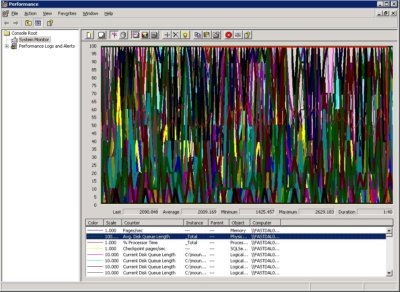
Chances are that if you open up these files in Perfmon, then you'll end up with a selection of lines on a graph, information that seems like it should be useful, but is often hard to decipher what it actually means and if you have a lot of counters you can end up with a mess of colour lines that make a nice picture, but has no meaning whatsoever!

Perfmon Screenshot

What do we do? How do we get some useful information that will help us solve this tricky performance problem?

Yes, you could go through and filter out the lines you don't need. What you really need is a way to give meaning to these lines - to see what is normal or abnormal, or to simplify the data or change its presentation into something more digestable. This is where PAL comes in.

PAL

Perfromance Analyis of Logs or PAL is a tool written by Clint Huffman at Microsoft, to assist in analysing Perfmon logs and to produce an HTML report that will provide detailed graphs, and indications of where a problem may lie. It provides a simple GUI to a complex Powershell script that actually does most of the work.

To understand how to use PAL, we need to look at it's 4 main components

  1. The Log file
  2. The Threshold File
  3. Questions
  4. The End Result

So, let's download PAL, fire up the GUI, and get to work!

Log Files

The Perfmon log file is where all PAL looks for data. A key advantage to using PAL is that you do not need to consider log size when you look at collecting your data. You can include all the counters you might need, and then instruct PAL to only analyse the ones you want and only during a specific time period. The only caveat to this is that PAL will not work as well if you have multiple computers feeding a single log file, as it will assume that the configuration of the machine is the same for each counter.

So, tell PAL where you log file is, and specify a time range for the data you want to analyse if you don't want to look at the whole file (if you have multiple files, we can add them later).

Threshold file

The threshold file is what makes PAL a useful tool. In essence, it's just a simple XML file used to define what kind of analysis you want PAL to do on your log files.

The first thing this file does is to define what counters you want to analyse, meaning you can skip any counters that you're not interested in or don't apply to your current problem.

Next, and the reason it is called a threshold file, it lets you set thresholds on each of your counters. This allows us to add some meaning to the data we have collected. We can define what value for each counter defines a warning state and what defines a critical state and so bring potential problems to our attention.

Finally, the threshold file allows you to specify questions to ask. We will come on to these shortly.

This may sound like a lot of work, but it doesn't have to be. PAL has a number of threshold files included that cover many of the common server configurations, e.g. Exchange, OCS, SQL, and a catch all, systems overview file. Using these built in threshold files, or by downloading additional ones from the Internet you can make extensive use of PAL without ever needing to write any code.

If these threshold files do not meet your needs, or you need one that is tailored to your needs, then PAL includes a GUI that assists you in doing just that. Selection of counters is done via the user interface. However, the calculations used to determine threshold values are written in Powershell, so some ability to write Powershell code is required.

PAL Screenshot

If you haven't yet collected your Perfmon data, you can also use PAL to generate a Perfmon template from a threshold file, so that you only collect the data that this threshold file will generate.

Questions

The questions section asks you for some extra information about the machine this Perfmon log is for, for example number of CPU's, amount of memory etc. These questions are important, because the values you give can be accessed in the Powershell code inside the threshold files. These values can be used to assist in calculating your threshold levels.

Questions are configured inside the threshold file, and can be edited and added through the PAL GUI when creating a threshold file. When you add a question you create a Powershell variable that is available for use later inside threshold calculations.

Running the Analysis

Once you have selected your log, your threshold file, and answered some questions, you are ready to go. At this point, you add your job to the queue. You can then choose to either run this queue now or queue up more jobs to run in a batch. PAL analysis jobs can take a number of hours to run, depending on how much data is contained in your logs, so it is often convenient to queue up jobs to run overnight.

Ok! So, you've run your analysis and PAL has spat out some HTML files, how are these useful?

First off, for those in a rush or who want a quick overview of what problems there may be, there is the alerts section. This looks at the threshold values we had in our threshold file, and gives a visual indication of what areas of this log are in a warning, or critical state. It's very easy to quickly see where the machine is struggling, and where you may want to focus your efforts on fixing the problem.

html output

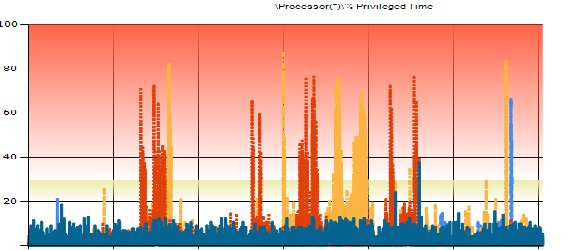
Once you've been through all your alerts, we then have detailed information on all your selected counters. Each counter is presented separately, with a graph, alert details and statistics. Threshold data is also presented on each graph, allowing us to quickly see at what point there was an issue and how severe it was.

graph example

As you can see from this graph, this job is making the CPU a little unhappy at times and might be something that needs to be looked at!

Summary

Perfmon is a great tool for collecting performance data, but it sucks when it comes to actually analysing this data and getting some meaning from it. What looks like a big spike in the Perfmon viewer could actually be normal operation for that counter - we're missing some helpful context. We can use PAL to give us information that is not only easier to read but also has some meaning to it. From this, we can determine which data is normal and can safely be ignored, and which data is anomalous and is something that we need to investigate.

PAL is by no means perfect; getting useful reports out of this tool relies on having a threshold file that covers the counters you need to analyse with meaningful threshold calculations. If one of the included files, or one found on the internet covers this then that's great, but if not you are stuck needing to write your own using Powershell, which can be quite a complex task if you have lots of counters you want to analyse.

Users who need to analyse perfmon data alot will invest the time in customising their threshold files to get out exactly what they need, however more casual users are going to rely heavily on the pre-constructed files.

That said, more and more product areas are seeing the value in PAL and providing threshold files for their products, Exchange and OCS are two examples of this. There's no magic pixie dust in these threshold files. If you can understand Powershell, then you can write your own to handle any Counter that Perfmon can use, including third party ones. So it's a great option for people who need to analyse uncommon data. It's also open source, so if you want to see how the Powershell code behind the analysis, you can.

It's also not a quick process; log analysis can take hours. If you're looking for an immediate answer to your problem then you are going to have to use other methods of getting your answers.

If, however, you've got the right threshold file, and the time to run the analysis, then this can prove an invaluable tool to help you get meaning, and ultimately solve your problems, from Perfmon data.

Further reading:

December 2, 2008

Day 2 - Windows Powershell

Maybe you're a windows sysadmin. Maybe you're not. Either way, you might find the features in Powershell pretty cool.

Powershell is Windows-only and free to use. Some syntactic differences asside, it looks and feels like a unix shell language. It has standard features you might expect such as functions, recursion, variables, variable scope, objects, and a handful of built-in functionality to help you get work done, but it does many things better.

In addition to these baseline expectations, functions in powershell trivially take flag arguments by simply declaring a function argument (function foo($bar) { ... } can be invoked as foo -bar "somevalue". You can create arbitrary objects with properties and methods defined on the fly. Exception handling, logging, trace debugging, and other goodies are packed in by default.

It supports pipes like your favorite unix shell, except instead of piping text, you pipe objects. The key word is object. When you run 'dir' (or ls, which is an alias), it outputs file objects. When you run 'ps' (which is an alias of get-process), you get process objects. When you run 'get-content' a file, you get an array of strings.

Why is this significant? As a unix sysadmin, you quickly become intimate with piping one command to another, smoothly sandwiching filter invocations between others tools. Filter tools like awk, sed, grep, xargs, etc, all helping you convert one output text into another input text for another command. What if you didn't have to do that, or had to do it less? No more parsing the output of ls(1), stat(1), or du(1) to ask for file attributes when powershell's file object has them. What about getting process attributes?

# Yes, this is a comment in Powershell
# Show the top 3 consumers of virtual memory:
PS > get-process | sort {$_.VirtualMemorySize} | select -last 3

Handles  NPM(K)    PM(K)      WS(K) VM(M)   CPU(s)     Id ProcessName
-------  ------    -----      ----- -----   ------     -- -----------
    745      58    66648       4316   632    21.03   3564 CCC
   1058     107   230788      28384   680   600.23   5048 Steam
    446      78  1328988    1267960  1616 6,223.72   3692 firefox

# Kill firefox
PS > get-process firefox | stop-process
# Alternately
PS > get-process firefox | foreach { $_.kill() }
'select' is an alias for 'select-object' which lets you (among other things) trim an object to only selected properties. Inspection is done with 'get-member' (or 'gm' for short) and you can inspect objects output by 'ls' by doing: ls | gm, or processes with get-process | gm. You can ask an object what type it is with obj.gettype(); such as (get-item .).gettype()

But what if you want to manipulate the registry easily? The registry, filesystem, aliases, variables, environment, functions, and more are all considered "providers" in Powershell. Each provider gives you access to a certain data store using standard built-in commands. A provider can be invoked by prefixing a path with the provider name. For example, to access a registry key, you could use dir Registry::HKEY_CURRENT_USER to list keys in that part of the registry.

In addition to other neat features, you've got nice access to both COM and .NET. Want to create a tempfile?

PS > $tmp = [System.IO.Path]::GetTempFileName()
PS > ls $tmp
    Directory: Microsoft.PowerShell.Core\FileSystem::C:\Users\Jordan\AppData\Local\Temp

Mode                LastWriteTime     Length Name
----                -------------     ------ ----
-a---         12/2/2008   1:25 AM          0 tmp55FC.tmp

PS > rm $tmp

Help is also conveniently available from the powershell prompt. Help, which can be accessed with a muscle-memory-friendly 'man,' comes in different details levels. Try help select-object and then help select-object -detailed. There's also other useful builtins like foreach-object (like 'for' in bourne), select-object (like cut, tail, head, and uniq, but cooler) , sort-object (like sort, but cooler), where-object (like grep, but cooler), measure-object (like wc, but cooler), and format-list and format-table for sanely printing object properties.

Are you still scripting in DOS batch or VBScript? Do you use Cygwin as a means of escaping to a scripting language on windows that is less frustrating or awkward? Are you suddenly facing windows administration when your background is unix? Check out Powershell.

Further reading:

Download Powershell
Powershell homepage
Hey, Scripting Guy!
A pretty good resources for practical powershell examples